Introducing File Attachments: Turn Any Document, Image, Audio, or Video into Speech
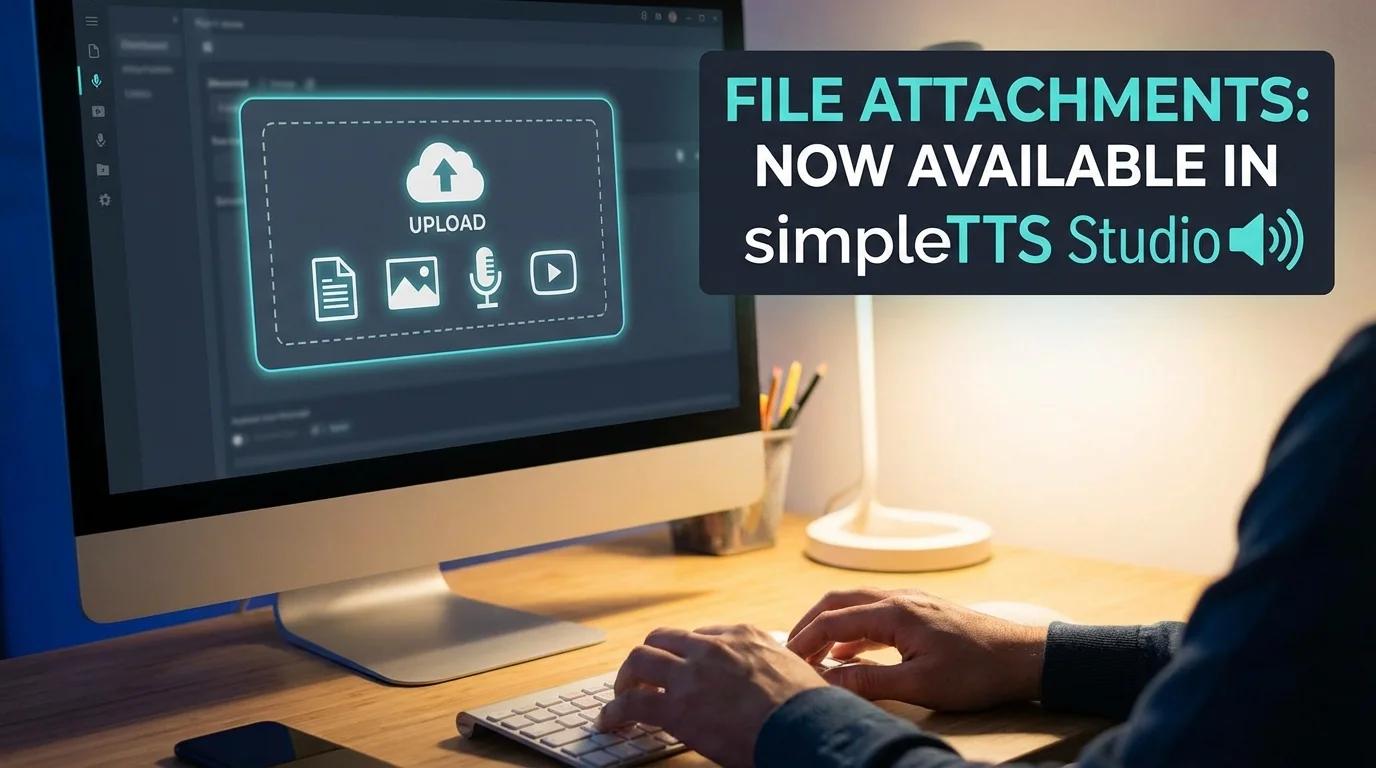
We're excited to announce a powerful new feature in simpleTTS Studio — file attachments for AI content generation. You can now upload files directly alongside your text prompts, letting our AI process them multimodally before converting the output to speech.
What's New
The AI prompt input in Studio now includes an attach button (the paperclip icon) that lets you upload a file for the AI to analyze. Pair it with a text prompt to tell the AI exactly what you want — or toggle Summarize mode and let it condense the file's content automatically.
Supported File Types
- Documents — PDF, TXT (up to 20 MB / 1 MB)
- Images — PNG, JPEG, WEBP, HEIC, HEIF (up to 7 MB)
- Audio — MP3, WAV, M4A, OGG, FLAC, AAC (up to 25 MB)
- Video — MP4, WEBM, MOV, MPEG, 3GPP (up to 25 MB)
How It Works
- Attach a file — Click the paperclip icon in the AI prompt bar and select your file.
- Write your prompt — Tell the AI what to do with the file (e.g., "Extract the key points from this PDF" or "Describe what's happening in this video").
- Or just summarize — Toggle the Summarize button and submit with no prompt needed. The AI will automatically generate a concise summary of your file.
- Generate speech — The AI output lands in your text editor, ready to convert to speech with any voice.
The file is securely uploaded to temporary storage, processed by AI, and automatically cleaned up afterward — nothing is retained.
Use Cases
- Lecture notes to audio — Upload a recorded lecture (MP3/WAV) and prompt "Create a study guide from this lecture," then convert it to speech for on-the-go review.
- PDF summaries — Drop in a research paper or report, hit Summarize, and turn the key takeaways into a podcast-style audio clip.
- Image descriptions — Upload a photo or infographic and ask the AI to describe it in detail — great for accessibility content.
- Video recaps — Attach a short video and prompt "Write a script summarizing this video" to create a voiceover-ready script.
- Document translation workflows — Upload a document, prompt "Translate the key points to Spanish," then generate speech with a Spanish voice.
Smart UI Behavior
- When a file is attached, the template and word count controls automatically disable since the file drives the content.
- In Summarize mode, you can submit with just the file — no text prompt required.
- In Generate mode, a text prompt is always required so the AI knows what to do with your file.
- A file chip appears below the text area showing the attached filename with a quick-remove button.
- After successful generation, the attachment is automatically cleared so you can start fresh.
Availability
File attachments are available to all registered users across both AI Generate and Voice Cloning apps in Studio.
Ready to try it out? Head to Studio and start turning your files into speech.